Showing posts with label Windows. Show all posts

Wednesday, March 11, 2015

UserControl What a Wonderful Future in C# C-Sharp You should be using

Working on a big project that contains a lot of functionality, modules and futures really gets stressing and gets out of control.  So the best approach is to divide code into modules and structure them to be unique and reusable.


The following is a screen shot or the main application I put together for the example purpose.  It contain a text  box that is displays all output logs.
You can send text logs from "Add Text Test" command button,
you can also, type specific text in the two text boxes and send them to the Output Log Text box.


 I created this user control, a text box and a command button that can be used to type in your text log and press the button to update/send to the main Output Log text box.


Overall Concept

The idea, is when creating main application GUI, you create new user control that can be used later and almost standalone. So it is self contained and can be reused.
The following diagram shows an application that has a text control and three other control groups that consists of a text entry and a command button.
these command buttons can be used multiple times in the same application with different needs and functionality.


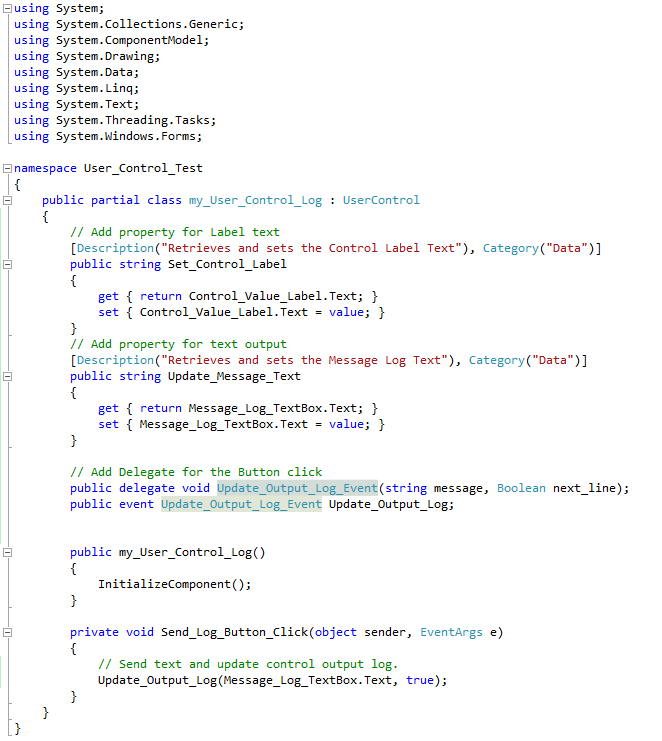
The first goal is to create the control group and define events and properties you need to use for this user control. In the user control we using there are:
  • Event that occurs when user clicks on the Command button
  • Properties related to the Text Entry
    • Set: modify the contents of the Text Entry
    • Get: read the contents of the Text Entry
Command Button Events are handled as follow:
  1. User Control Class:
    1.  Add new public delegate 
      • public delegate void Update_Output_Log_Event(string message, Boolean next_line);
    2.  Create new event of same delegate type 
      • public event Update_Output_Log_Event Update_Output_Log;
    3. In the button click add a call to that event
      • Update_Output_Log(Message_Log_TextBox.Text, true);
  2. Main Application Class
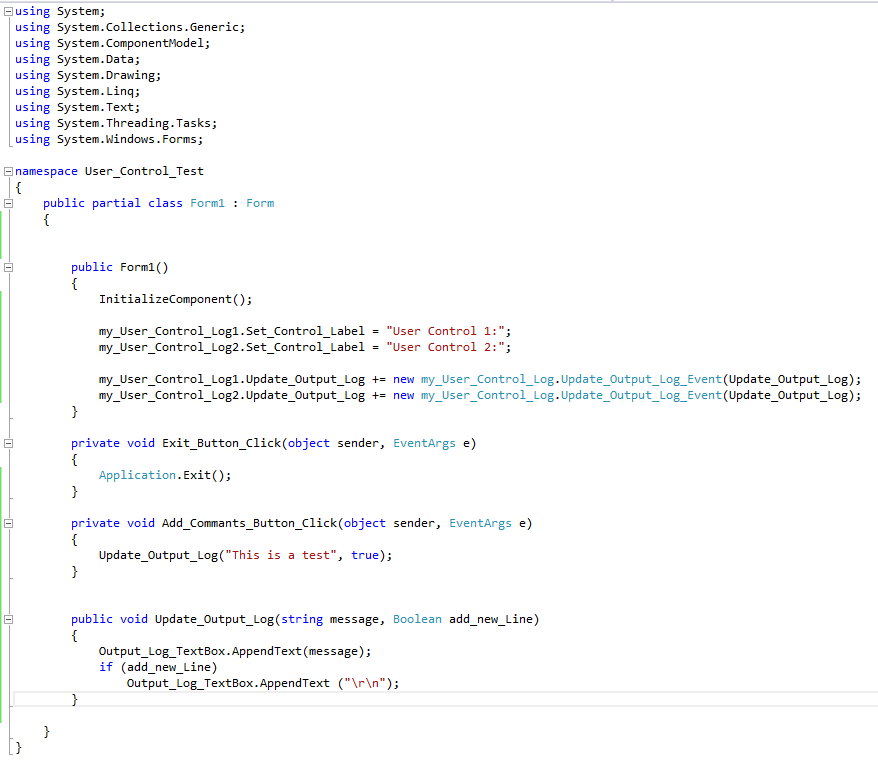
    1. Add the User Control to the GUI of the main form
      • I will rename it my_User_Control_Log1
    2. Create function that has the same parameters as the delegate in User Control
      • public void Update_Output_Log(string message, Boolean add_new_Line)
    3. Register the event to the new function
      • my_User_Control_Log1.Update_Output_Log += new my_User_Control_Log.Update_Output_Log_Event(Update_Output_Log);


Properties are handled as follow:


  1. User Control Class:
    1. Add description and category to make it look nicer!
      • [Description("Retrieves and sets the Message Log Text"), Category("Data")]
    2. Create new variable that represents the data type we need to access
      • public string update_Messsage_Text
    3. Add get and set properties for that variable
      • get { return Message_Log_TextBox.Text; }
      • set { Message_Log_TextBox.Text = value; }
      • These two properties will modify/read from the Text Box Message_Log_TextBox.Text
  2. Main Application Class:
    1. when needed you can set or get text values using the following
    2. Output_Log_TextBox.AppendText(my_User_Control_Log1.Update_Message_Text);
    3. my_User_Control_Log1.Update_Message_Text = "Test New Text...";


Here are all the details on how to do that step by step...


Thursday, August 21, 2014

Writing C code on Windows using Geany and GNU

I have to provide a simple instruction to install an IDE "Integrated Development Environment" for  my students to be able to work on the assignments on their computers.
After doing a lot of research I found two options, Monodevelop and Geany. They both work great on Ubuntu Linux and have no issues, but, to use them on Windows I started to deal with the unknown...

Working with Monodevelop: monodevelop
Monodevelop will install fine in windows under different name, the issue is it does not support C programming language. At least out of the box. However, I read some blogs stating that we can somehow get it to compile C...  So, this is not what I am looking for and I can not expect my students to waste their time with these hacks at this time.  NOT AN OPTION.
Note:
it works fine on Ubuntu Linux and Mac, so, you can use it fine if this is what you have for Personal Computer...


Working with Geany:  Geany
Geany is a great simple IDE that works on Ubuntu Linux and Windows, as well as Mac.  but it requires the GCC, GNU C Compiler which will need to be installed on Windows.
I came up with the following instructions to help simplify the process of doing that.

Here is a list of download links that will be needed:

  1. Geany download site  Please select"geany-1.24_setup.exe - Full Installer including GTK 2.16."
  2. MinGW "Minimalist GNU for Windows"  Please select "Looking for the latest version? Download mingw-get-setup.exe (86.5 kB)"
Now that you have all required downloads, run both and install by following the default installations.
You should have the following icons on your desktop now,


Now, we will need to setup and install the gcc compiler to be able to compile your C code programs.


  1. Start MinGW by clicking on MinGW Installer shown on your desktop.
  2. you will get the following screen and notice that your list has no items selected in green boxes like my screen shot
  3. Go a head and select the one I have selected, right click and select "Mark for Installation"


    1. mingw-developer-toolkit
    2. mingw32-base
    3. mingw32-gcc-objc
    4. msys-base
  4. Now go to the menu "Installation" , and click on "Update Catalogue"
  5. after the download of needed files and installing them is done, you now have all you need to work on Geany and write your applications, but we need to add the new MinGW to Windows Path...
  6. You will need to go to Control panel
  7. Select System
  8. On the right list click on Advanced System Settings
  9. Now Click on Environment Variables...
  10. You will get this dialog box
  11. find Path  in the System Variables and double click on it
  12. now click on the Variable Value
  13. make sure you are at the end of the text and add the following text  ";C:\MinGW\bin\"
  14. you will be adding everything inside the double quotes
  15. Now, Click on OK and OK again,
  16. when you start Geany and write your own program at this point everything should be all set to compile your new code.